
MacBook Screen Pressure Damage: Everything You Need to Know
Introduction
Your MacBook’s screen is one of the most delicate and expensive components of the entire device. That beautiful Retina display that makes your photos and videos look stunning is surprisingly vulnerable to one particular type of damage that affects thousands of users every year: pressure damage.
Understanding what causes this problem, how to recognize it, and—most importantly—how to prevent it can save you hundreds or even thousands of dollars in repair costs.
Whether you’re a new MacBook owner looking to protect your investment or you’re dealing with a screen issue right now, this comprehensive guide covers everything you need to know about MacBook screen pressure damage. We’ll explore the causes, symptoms, prevention strategies, and repair options so you can make informed decisions about your device.
What Exactly Is MacBook Screen Pressure Damage?
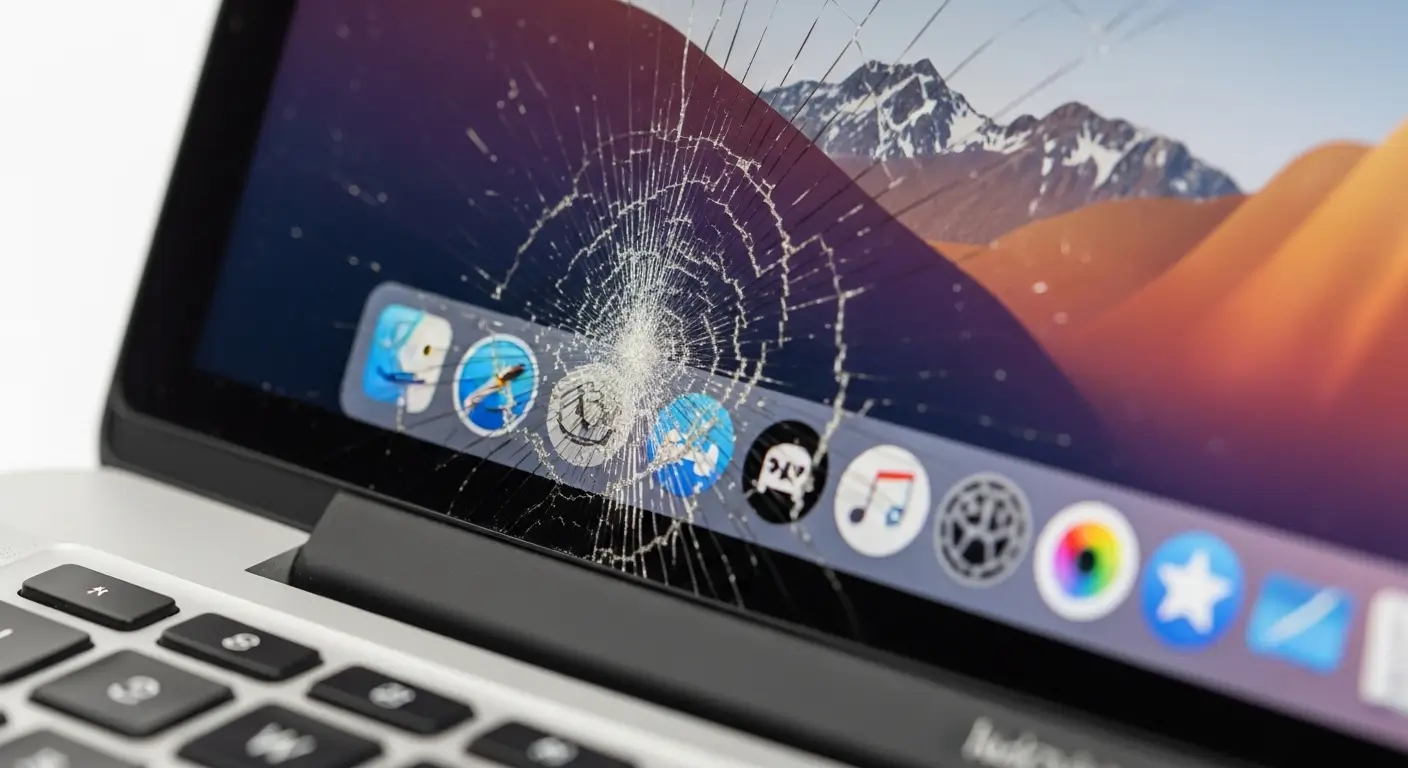
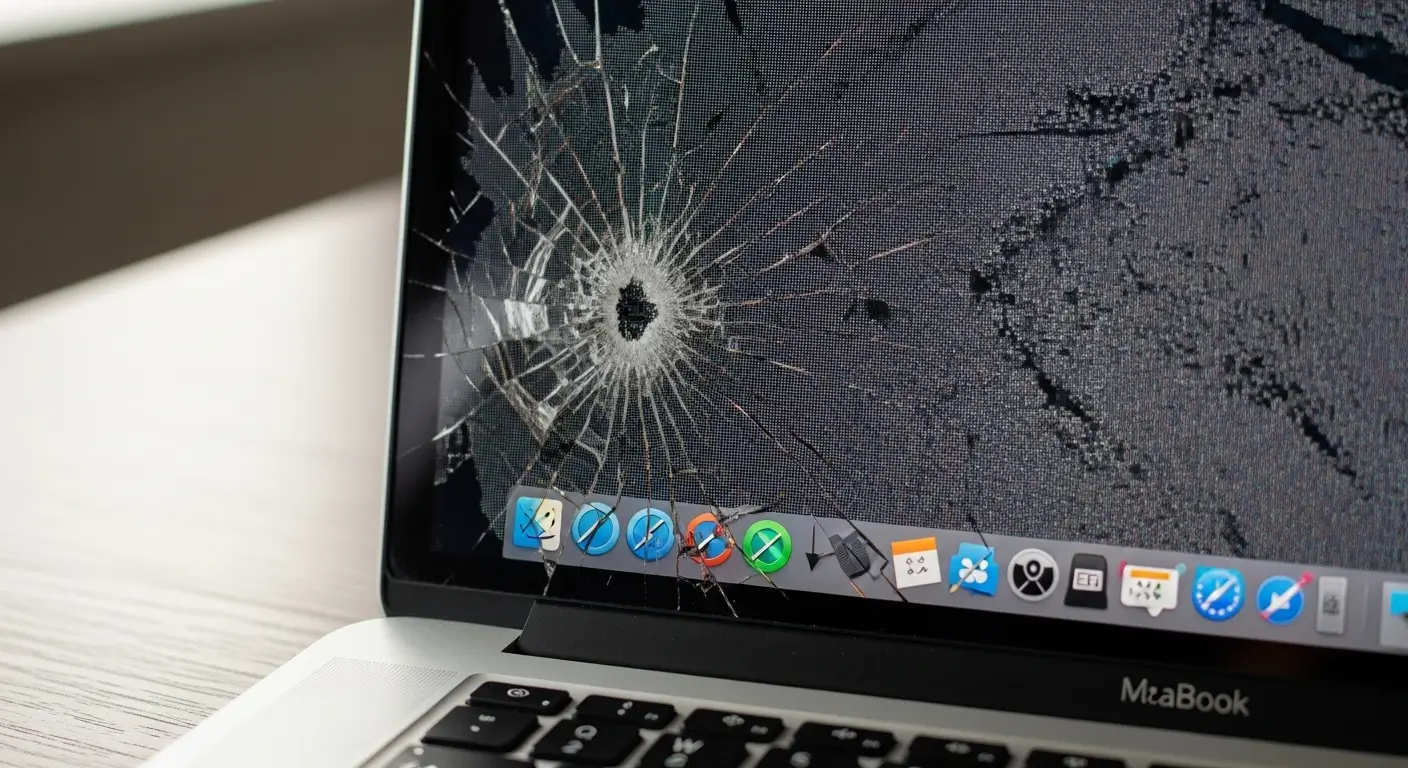
Pressure damage occurs when force is applied to the MacBook’s display, causing physical harm to the screen’s internal components. Unlike cracked glass from a drop or impact, pressure damage often happens without any obvious external signs. The screen might look perfectly fine on the outside, while the LCD panel beneath has been permanently damaged.
The Retina display in modern MacBooks consists of multiple layers working together to create those sharp, vibrant images. These layers include the outer glass, the digitizer, the LCD panel, and the backlight.
When excessive pressure is applied—whether from closing the lid with something inside, pressing too hard during cleaning, or even from the natural pressure of a closed laptop in a bag—these delicate layers can become damaged in ways that aren’t immediately visible.
What’s particularly frustrating about pressure damage is that it can occur from seemingly innocent situations. You might close your laptop without noticing a pen cap on the keyboard, or you might gently clean the screen with a cloth that has debris trapped in it. These everyday scenarios can result in permanent damage that shows up as dead pixels, lines across the screen, or complete display failure.
Common Causes of Pressure Damage
Understanding how pressure damage happens is the first step toward preventing it. Here are the most frequent causes that lead to damaged MacBook screens:
Foreign Objects in the Closed Laptop
This is the number one cause of pressure damage. When you close your MacBook with something between the keyboard and screen, that object creates a single point of pressure that can crush the display beneath. Common culprits include:
- Pens, pencils, or stylus pens
- Earbuds or headphones
- Paper clips or small office supplies
- Food wrappers or snack items
- Charging cables left connected
- Loose sheets of paper or sticky notes
Even something as thin as a receipt or a piece of tissue paper can cause damage over time, especially if the laptop is subjected to additional pressure from being in a bag or backpack.
Excessive Force During Cleaning
Many users accidentally damage their screens while trying to clean them. Pressing too hard with a cleaning cloth, especially if there’s trapped debris or dust, can create enough pressure to damage the LCD layer beneath. Using inappropriate cleaning solutions that leave residue can also create situations where users rub harder trying to remove streaks, inadvertently causing damage.
Carrying Without Protection
When you transport your MacBook in a bag or backpack, it’s subjected to various pressures from other items. Without proper padding or a dedicated laptop sleeve, the accumulated pressure from books, chargers, and other items can press against the closed laptop lid. Over time, this constant pressure—even if relatively mild—can cause damage to the display.
Closing the Lid Aggressively
While MacBooks are designed to be closed and opened regularly, slamming the lid shut or closing it with more force than necessary can cause damage. This is especially true if there’s any foreign material present or if the laptop is already slightly compromised.
Stacking Items on Top
Using your MacBook as a writing surface or placing books, papers, or other items on top of the closed laptop is a recipe for disaster. The pressure from these items, particularly if they shift or are stacked unevenly, can concentrate force on specific areas of the screen.
Signs and Symptoms of Pressure Damage
Recognizing the symptoms of pressure damage can help you identify problems early and potentially prevent further damage. Here’s what to look for:
Visual Indicators
- Dead pixels: Small spots on the screen that remain black or show a single color regardless of what’s displayed
- Lines or bands: Horizontal or vertical lines appearing across the display, often in colors like pink, green, or white
- Backlight bleeding: Uneven backlight causing bright spots or halos around edges, particularly visible when viewing dark content
- Discoloration: Areas of the screen that appear darker, lighter, or differently colored than surrounding areas
- Flickering: The screen flickers or dims intermittently, especially when pressure is applied to certain areas
Functional Problems
- Touch sensitivity issues: On models with Touch Bar or touchscreen functionality, certain areas may become unresponsive
- Display completely black: The screen fails to display anything, despite the MacBook being powered on
- Image persistence: Images that remain “stuck” on screen even after displaying new content
Physical Signs
- Slight warping or bending of the screen assembly
- Visible gaps between the screen bezel and the display
- Unusual sounds, like cracking, when the lid is opened or closed
If you notice any of these symptoms, especially after an incident where pressure might have been applied to the screen, it’s worth having your MacBook inspected by a professional.
Which MacBook Models Are Most Vulnerable?
While all MacBook screens can suffer pressure damage, certain models and features make some more vulnerable than others:
MacBook Air
The MacBook Air models, particularly those with Retina displays, have increasingly thin screen assemblies. The slim design means there’s less material between the external glass and the sensitive LCD layers, making pressure damage more likely and potentially more severe.
MacBook Pro with Touch Bar
The Touch Bar models incorporate additional electronics in the display assembly, creating more potential points of failure. The Touch Bar itself can be damaged by pressure, and this damage might extend to the main display.
MacBook Pro 16-inch
While the larger 16-inch models have more robust construction, their larger screens are susceptible to pressure damage across broader areas. Concentrated pressure at any point can cause issues.
MacBook Pro 13-inch and MacBook Air M1/M2
The more recent Apple Silicon models continue the trend toward thinner, lighter designs. While improved in many ways, their display assemblies remain vulnerable to pressure-related issues.
Prevention Strategies: Protecting Your Screen
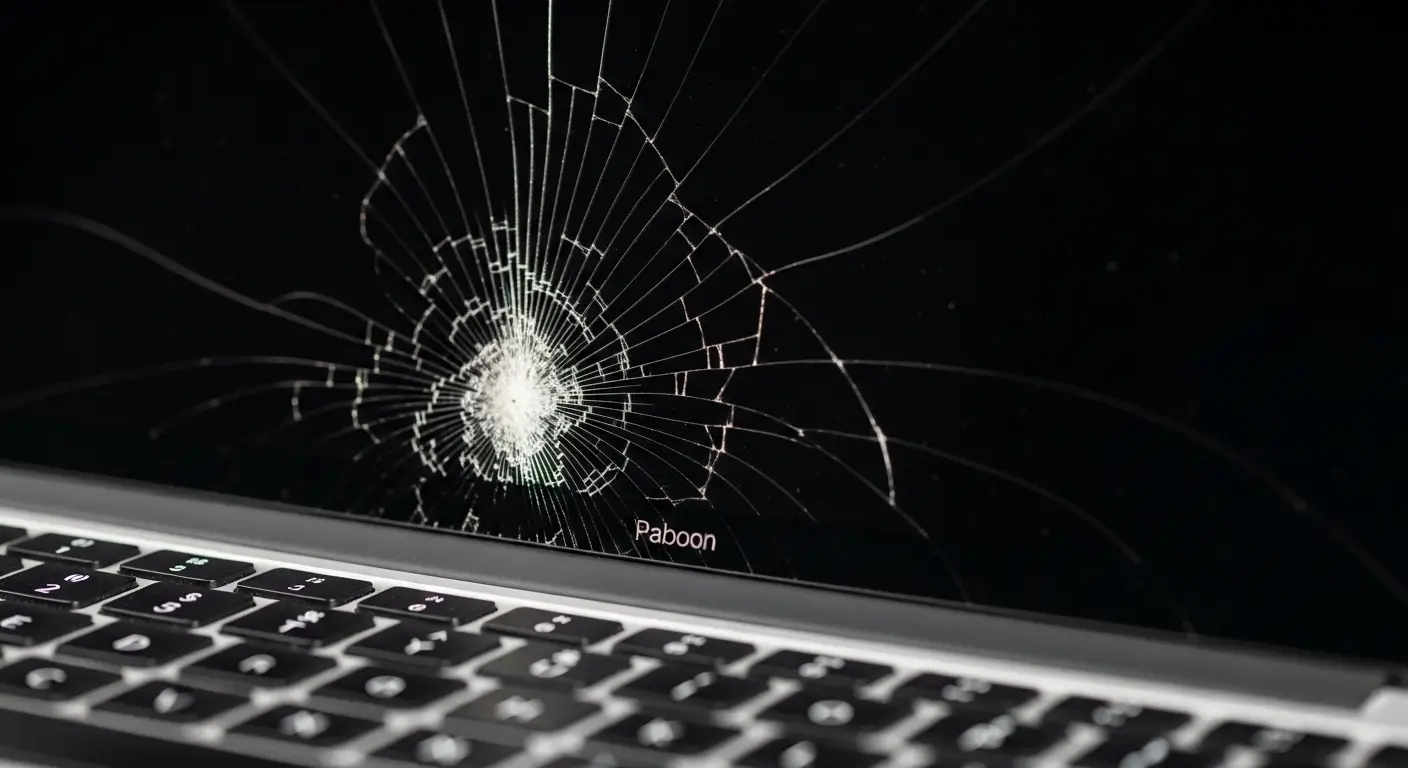
The good news is that pressure damage is highly preventable. Here are proven strategies to keep your MacBook screen safe:
Always Check Before Closing
Make a habit of checking your keyboard before closing your laptop lid. Run your fingers across the keyboard to feel for any debris, and visually scan for any items that might have been left on the keyboard. This simple step prevents the majority of pressure damage cases.
Use a Dedicated Laptop Sleeve
Invest in a quality laptop sleeve or case that provides cushioning and protection. When your MacBook is in your bag, the sleeve absorbs impacts and distributes pressure evenly, protecting the screen from the contents of your bag.
Keep Your Workspace Clear
Establish a clean workspace routine. Before closing your laptop, clear away any items that might accidentally be left on your desk. This is especially important if you often work in multiple locations or have a cluttered desk.
Clean Your Screen Properly
Use only approved cleaning methods for your MacBook display:
- Gently wipe the screen with a soft, lint-free cloth
- If needed, lightly dampen the cloth with water or a 70% isopropyl alcohol solution
- Never spray liquids directly on the screen
- Avoid pressing hard when cleaning
Avoid Stacking Items on Your Laptop
Resist the temptation to use your closed MacBook as a surface for other items. Whether it’s a notebook, coffee cup, or anything else, keeping items off your laptop prevents unnecessary pressure.
Handle Your MacBook Carefully
Be mindful when opening and closing your laptop. Close the lid gently but completely, ensuring it latches properly. Avoid carrying your MacBook by the screen or placing pressure on the display in any way.
Consider a Keyboard Cover
A thin keyboard cover can provide an extra layer of protection, preventing small objects from making direct contact with the screen if they’re accidentally left on the keyboard. However, ensure the cover is removed before closing the laptop.
What to Do If You Suspect Damage
If you believe your MacBook screen has been damaged by pressure, taking the right steps quickly can sometimes minimize the damage or improve your repair options:
Stop Using the Laptop
If the screen shows any signs of damage, stop using the laptop to prevent potentially making the problem worse. Continued use, especially if there’s physical damage to the display assembly, could cause additional issues.
Check Your Warranty
MacBook screens are covered under Apple’s limited warranty for manufacturing defects, but accidental damage from pressure is typically not covered. However, it’s worth checking your warranty status and any AppleCare+ coverage you might have purchased. AppleCare+ specifically covers accidental damage, though you’ll pay a service fee.
Document the Damage
Take photos and videos of the screen issues you’re experiencing. Document any incidents that might have caused the damage. This information can be helpful when discussing repair options with Apple or third-party service providers.
Avoid Attempting Repairs Yourself
Screen repairs on modern MacBooks are extremely complex and should only be attempted by professionals. The display assemblies are integrated and require specialized tools and knowledge to replace properly. Attempting self-repair often causes additional damage and voids warranties.
Repair Options and Costs
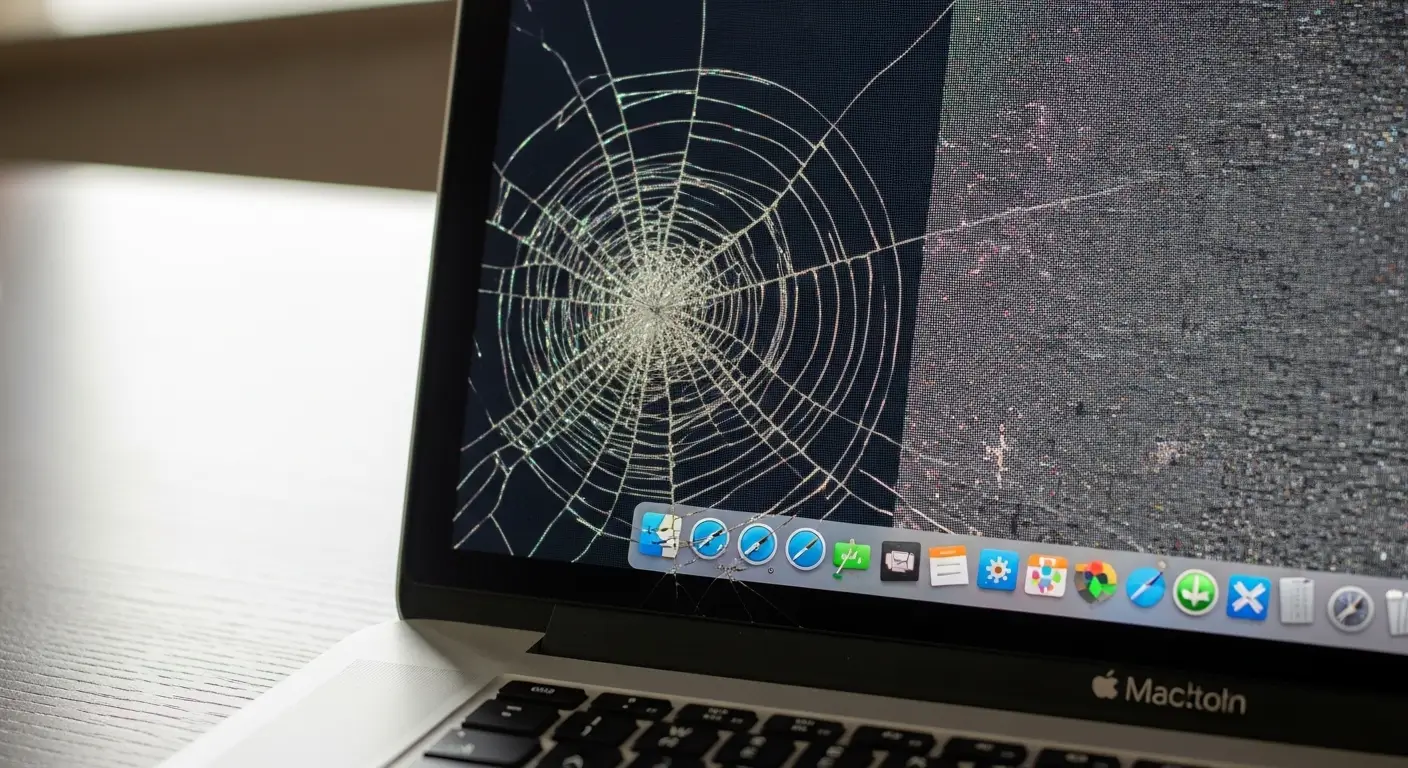
When your MacBook screen suffers pressure damage, you have several repair paths to consider:
Apple Official Repair
Apple offers screen replacement services through Apple Stores and authorized service providers. This option ensures genuine Apple parts and trained technicians, but it tends to be the most expensive option.
Typical costs for Apple screen replacement:
- MacBook Air: $300-$500 depending on model
- MacBook Pro 13-inch: $400-$600
- MacBook Pro 14-inch: $500-$800
- MacBook Pro 16-inch: $600-$1,000
These prices can vary based on your location and the specific model. If you have AppleCare+, your cost will be significantly lower, typically around $99-$299 for screen damage.
Third-Party Repair Shops
Independent repair shops often offer screen replacement services at lower prices than Apple. However, quality can vary significantly. Look for shops with:
- Experienced technicians
- Positive reviews and references
- Warranty on their work
- Use of quality replacement parts
Third-party repairs can range from $200-$600 depending on your MacBook model and the parts used.
Partial Repairs in Some Cases
In rare situations where damage is limited to specific components like the Touch Bar or backlight, partial repairs might be possible at lower cost. However, this is uncommon with pressure damage, which typically requires full display assembly replacement.
Real Stories: How Pressure Damage Happens
Understanding real-world scenarios can help you recognize risky situations in your own life. Here are common situations where pressure damage occurs:
The student scenario: A college student closes their laptop before rushing to class, not noticing the wireless earbuds case that fell from their desk onto the keyboard. The next time they open their laptop, lines streak across the display.
The professional situation: A business traveler packs their MacBook in their briefcase alongside a pen that wasn’t capped. During security screening or transport, the pen shifts and presses against the closed laptop.
The home accident: Someone uses their closed MacBook as a hard surface to write on, not realizing the pressure from their hand is gradually damaging the display beneath.
These stories all share common elements: the user had no idea damage was occurring until it was too late. This underscores why prevention through consistent habits is so important.
The Economics of Prevention vs. Repair
Let’s look at the numbers to understand why prevention makes so much sense:
Prevention costs:
- Quality laptop sleeve: $20-$50
- Keyboard cover: $10-$25
- Mindful checking before closing: Free
Repair costs:
- Apple screen replacement: $400-$1,000+
- Third-party repair: $200-$600
- AppleCare+ service fee: $99-$299
When you consider that a few dollars in prevention and a few seconds of attention can save you hundreds or even over a thousand dollars, the math is clear. Prevention is dramatically more cost-effective than repair.
Additional Tips for MacBook Care
Beyond pressure damage prevention, here are some general tips to keep your MacBook running well:
Temperature Considerations
Extreme temperatures can damage your MacBook’s display and battery. Avoid leaving your laptop in hot cars or in direct sunlight for extended periods. Similarly, very cold environments can cause display issues.
Proper Cleaning Products
Only use approved cleaning solutions. Avoid household cleaners, window cleaners, or abrasive materials. A microfiber cloth designed for electronics is ideal.
Safe Storage
When not using your MacBook, store it in a protective case in a safe location. Avoid placing heavy items on top of it, even if it’s in a closed position.
Regular Inspections
Periodically inspect your MacBook for any signs of damage, unusual wear, or debris that might have accumulated in the keyboard area.
Conclusion
MacBook screen pressure damage is a frustratingly common problem that’s almost entirely preventable with the right habits and protection. The thin, beautiful Retina displays that make MacBooks so enjoyable to use require a bit of extra care compared to older, bulkier laptops.
By making a simple habit of checking your keyboard before closing your laptop, using a quality protective sleeve, and handling your MacBook with awareness, you can virtually eliminate the risk of pressure damage. These few seconds of attention each time you close your laptop can save you hundreds of dollars in repair costs and the frustration of dealing with a damaged display.
Your MacBook is an investment in your work, creativity, and daily life. Taking these simple protective measures ensures that investment continues to serve you well for years to come. Remember: when it comes to MacBook screens, an ounce of prevention is worth far more than a pound of cure.